|
Back
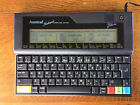
in 2023 I acquired this
Amstrad
Notepad NC100 for a reasonable price
due to it supposedly having
a faulty keyboard... but weirdly
enough it worked fine for
me, more or less.
|
In July
2026 the Amstrad officially replaced
my
AlphaSmart 3000 (right) due to a
preferred typing experience and
increased versatility, and I copied
Usagi Electric's example and created
"life" on the device... |
|
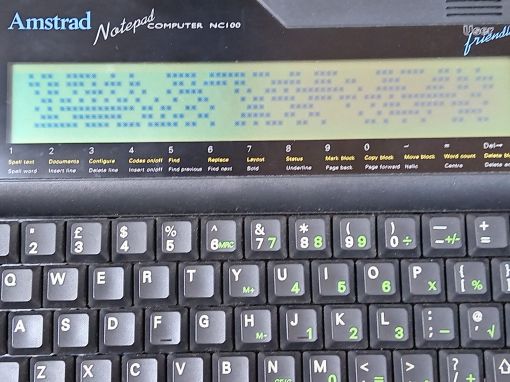
Click here for the details
"The Amstrad NC100 Notepad is a
portable Z80-based notebook
computer, released by Amstrad in
1992. It features 64 KB of RAM, a
word processor, various
organiser-like facilities (diary,
address book and time manager), a
simple calculator, and a version of
the BBC BASIC interpreter.
The computer's design, evocative of
the TRS-80 Model 100, features a
screen that is 80 character columns
by eight rows, and while not
backlit, the NC100 can run for up to
20 hours on four standard AA cell
batteries. There is an RS-232 serial
port for communication, a parallel
port for connecting a printer, and a
PC card socket, by means of which
the computer's memory can be
expanded up to 1 MB." -
Adapted from the Wikipedia article
on the device.

Initial
AlphaSmart Comparison:
|
Amstrad NC100 |
AlphaSmart 3000 |
|
More capable word processor
along with other tools |
Basic text input mostly |
|
Nicer keyboard |
(perhaps the keyboard is more
prone to deterioration with
age) |
|
Serial RS-232 data transfer |
Transfer via USB as if it's a
keyboard connected to your
computer |
|
4 x AA batteries |
3 x AA batteries (lasts
longer) |
|
Higher resolution screen |
Screen more visible outside |
|
Adjustable feet, but somewhat
flimsy |
More robust/rugged design
(partly due to simplicity)
Quirky design. |
File Transfer
Steps:
I
finally got round to transferring a
file from the NC100 over Serial to
an old laptop. The procedure I used
is as follows (adapted from
ncus.org.uk):
- Connect the NC100 with the
serial cable to my Windows PC
(98/XP) (I noticed on my second PC
to try this on that within the
Word processor on the NC100 with
the serial cable connected it was
receiving erroneous data that was
messing up my document or flitting
through menus as if keys were
being pressed, so I needed to
delay connecting it until ready to
begin the transfer).
- In Windows open up
HyperTerminal (Programs >
Accessories > Communication)
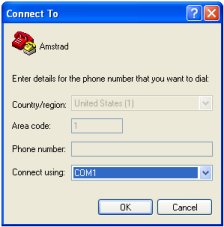
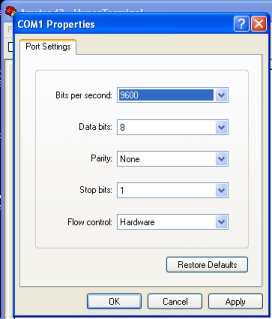
- Setup the new connect there
(it will be saved to the menu
above for next time): COM1 (or 2,
or whatever), 9600 baud, 8 data
bits, 1 stop bit, no parity.
- From the Word processor menu
on the NC100, choose to List
Stored Documents
- Press Secret/Menu on
highlighted document of choice
- Press T (for Transfer)
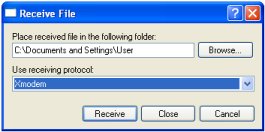
- In HyperTerminal go to
Transfer > Receive File...,
specify where you want to save the
file, and the protocol as Xmodem.
Click Receive.
- Choose your Filename (include
.txt)
- Back on the NC100 immediately
press X - for XModem send
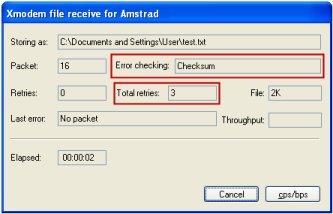
- Note that the transfer will
not actually start until the 3rd
retry and the Error checking
changes to Checksum (I wonder if
there is a way to instigate this
from the get-go, without having to
wait).
File Transfer Issues:
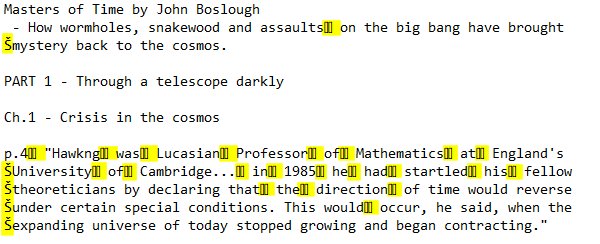
I have found
the transfer process to be
error-prone and I'm not sure why. In
the resulting document where I had
typed notes from a book there are a
number of eroneous "boxes" where I
assume Notepad can't interpret the
character. There are numerous
spaces/tabs which I thing occured in
the original as I typed. There are
also Š characters at the at the
beginning of many lines, and also
the page formatting is transferred
across so the new line appears as it
did on the Amstrad making further
formatting in the transferred file
problematic.
Above
all of this
I do prefer typing on the Amstrad
compared to my AlphaSmart 3000 though,
they keys just function nicer, even
if the end result isn't perfect.
Running BASIC:
Life:
In Usagi
Electric's July 2026 video on
Youtube 'BASIC
on This 80's Mini Computer is
Terrible' he explains the
program 'Life' and manages to
install and run it on his system. It
made me think I could surely install
and run it on my Amstrad NC100 with
its 8-line display. With the aid of
ChatGPT, here's how I did it.
- I
first asked ChatGPT if it thought
the program should work and it
confirmed it should, it even
feigned interest in my
project with "Looking through it,
it appears to be a simple
one-dimensional cellular
automaton." and curiosity with
"One question out of curiosity:
was your intention to create a
custom one-dimensional automaton
inspired by Conway's Game of Life?
The two-cell neighbourhood on each
side is an interesting variation
that isn't one of the more common
elementary automata." Indeed.
- I
didn't want to type in the program
by hand so from
the link in the video
description I copied and pasted
the BASIC program into a text
document (Kate on my Linux system
- I had to go to Tools > End of
Line > Windows/DOS to remove
erroneous formatting not visible
later on the Amstrad). I saved the
file as life.txt
5 LET M=78
10 DIM X(M)
20 DIM Y(M)
30 FOR I = 0 TO M
40 LET R = RND(1) * 10
50 IF R > 5 THEN 80
60 LET X(I)=1
70 GOTO 90
80 LET X(I)=0
90 NEXT I
100 FOR I = 2 TO M-2
110 IF X(I) = 1 THEN 140
120 PRINT " ";
130 GOTO 150
140 PRINT "*";
150 NEXT I
160 PRINT
170 GOTO 200
200 FOR T = 0 TO 25
210 FOR I = 2 TO M-2
220 GOTO 500
230 NEXT I
260 FOR I = 0 TO M
270 LET X(I) = Y(I)
280 IF X(I) = 0 THEN 310
290 PRINT "*";
300 GOTO 320
310 PRINT " ";
320 NEXT I
330 PRINT
340 NEXT T
350 GOTO 30
500 LET C = 0
510 FOR Z = (I-2) TO (I+2)
520 IF Z = I THEN 550
530 IF X(Z) = 0 THEN 550
540 LET C = C + 1
550 NEXT Z
560 IF X(I) = 0 THEN 800
700 LET Y(I) = 0
710 IF C = 2 THEN 750
720 IF C = 4 THEN 750
730 GOTO 230
750 LET Y(I) = 1
760 GOTO 230
800 LET Y(I) = 0
810 IF C = 2 THEN 850
820 IF C = 3 THEN 850
830 GOTO 230
850 LET Y(I) = 1
860 GOTO 230 |
- I
removed line spaces (these are
used in the video to explain the
different parts of the program). I
also had to remove spaces from
lines 5, 10, 20, 60 and 80 due to
"Array at line 60" and "Array at
line 80" errors I got when I
initially tried to run the program
on the Amstrad (these might not
have all been necessary but
ChatGPT helped me here). I also
changed line 5's value to 78 to
make better use of the Amstrad's
screen character width.
- I
transferred the text file to my
Windows XP laptop and then with a
serial cable connection to the
Amstrad I roughly followed my File
Transfer Steps
above, but I needed to Send
the text file to the Amstrad. Here
the Amstrad asks for a file name,
I chose 'life'.
-
The file transferred swiftly. Then
into BASIC using Function + B. [ChatGPT
gave me the impression I should
have been able to load the text
directly into BASIC using
HyperTermnial, but I couldn't get
anything to happen this way.]
-
Initially I thought I knew what to
do from my days of loading
programs from cassette onto ZX
Spectrums (LOAD "life", but this
resulted in "Bad program". The
exact procedure [found
here] was "*EXEC life" (which
sounds somewhat contradictory...)
The program loaded.
-
[With the syntax errors resolved]
I typed RUN, and away it went,
taking a few seconds to process
each line.
Further
comparisons and conclusion:
-
Typing
on my Amstrad compared to my
AlphaSmart 3000 is nicer, although
the AlphaSmart's screen is more
visible outside (not a grave
problem if you can effectively
touch-type).
-
There is
a file length limitation on the
AlphaSmart that I frequently run
into, although continuing in a new
file is not really an issue.
-
The file
transfer process is more of a hassle
to set up on the Amstrad, but it is
potentially quicker with the Amstrad
if the document is lengthy.
-
The
Amstrad requires Serial cable
transfer (i.e. my Windows 98/XP
machine) whereas I can use any
machine that accepts a USB keyboard
with AlphaSmart.
-
There
might be multiple files that make up
"one" to transfer
from the AlphaSmart whereas a single
document can be longer on the
Amstrad.
-
Transferring from the AlphaSmart
means your "keyboard" is out of
action for the duration of the
transfer.
-
I often
get a "Lithium Battery Low..."
message on the Amstrad; I think this
is due to something making poor
contact because the battery itself
seems fine.
|