| During the summer of
2020 I had a Webcam feature on this website. This page
documents how it works...
One of the first things I wanted to do with my website at
Neocities was to (re)add a webcam. Back in the 2000s when I was
new to the internet with my AMD K6-2 computer running Windows 98
and connected via dial-up, I had a Creative webcam. The software
included with that had the feature of being able to upload images
via FTP, so I soon made use of that.
Fast forward 20+ years and I no longer have that webcam, or
that computer, and my current webcam (a Logitech C270) doesn't include that FTP facility.
There were also few other things lacking and issues I needed to
overcome. If you're interested in adding a Webcam page to your
website, or want to read how I did it, here is the How2:
FTP access:
The first issue is that Neocities' hosting lacks FTP (File Transfer
Protocol) access* which is the means by which I'm familiar with. If you
have a free account at Neocities then you'll be dragging and
dropping your files to upload them, right? My way around this for
the Webcam is to use another webhosting service to upload my webcam images to. (There are
likely ways to do it all with Neocities if you have a premium
account).
*Back in February 2025 I used
Neocities' CLI/HTTP API access to Bulk
Delete Files. Therefore it may be possible to adopt this
approach for use with a webcam.
SSL:
An issue I found with my other hosting service was that it
is not SSL-enabled. Basically your Neocities address begins with
https:// rather than http:// with the s denoting the SSL security.
I would have to pay extra with my other hosting to enable
this so that I could embed my webcam image in a Neocities page (Neocities
doesn't allow you to embed a page or image from a http://
location). My
way around this is to have my webcam page hosted on my other
service; my Neocities site simply links to it and most visitors
are none-the-wiser.
Webcam software:
In 2020 I set things up on an Advent
3211-B Netbook running Windows XP. Then in 2026 I set things up on
a Raspberry Pi. Here are the two approaches:
Webcam software (Windows XP):
I found and tried a number of webcam
softwares that claimed to do the trick, but sadly there are a lot
of out-of-date review sites out there, and software that doesn't
work with newer systems (running Windows 10*). I found
Yawcam,
however, to do the trick and downloaded 0.6.2* and provided it
with my hosting service's FTP settings.
*They have recently released v.0.8.0
which I have yet to install (there is even an
AI version).
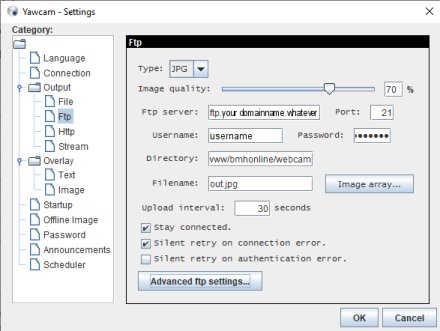
I have Yawcam set to upload an image
(called out.jpg by default) every 30 seconds.
One particular setting that might go
unnoticed is this one in FTP > Advanced settings:
Upload temporary filename and rename.
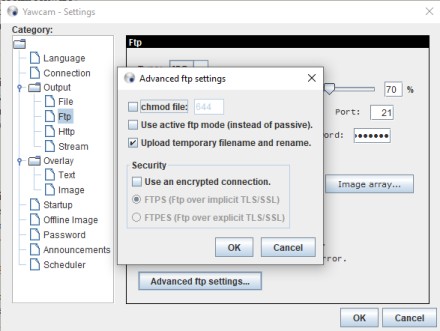
This helps to ensure a viewer's
browser doesn't try to display a half-uploaded image, i.e. while
Yawcam is still uploading the frame. As the setting suggests, it
uploads the frame with a temporary filename, and once complete it
renames it, this is because renaming is quick whereas uploading
might be slow or delayed.
I also have the following settings in
place: Stay connected, and Silent retry on connection error:
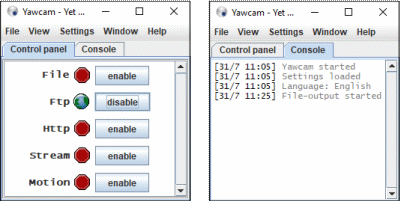
Once set up, you can click to enable
Ftp from the main window (Control panel) and then check for errors
in the Console tab there:
Webcam software (Raspberry Pi):
I have more recently acquired a
Raspberry Pi (3B v1.2) and with the help of ChatGPT I have been
able to use this Pi:
Step 1, prepare the Pi. I did a fresh
install, then:
sudo apt update
sudo apt install fswebcam ftp -y
fswebcam test.jpg
I created the directory pi in
my user area. In there I created webcam, and in there
archive* and fallback**. In the fallback directory I
have an "offline image" called out.jpg
Step 2, create the script in the
webcam directory with the filename capture_and_upload.sh:
#!/bin/bash
# Settings
IMAGE_DIR="/home/user/pi/webcam"
ARCHIVE_DIR="/home/user/pi/webcam/archive"
FALLBACK="/home/user/pi/wecam/fallback/out.jpg"
IMAGE_NAME="out.jpg"
FTP_HOST="ftp.your.domain.whatever"
FTP_USER="[USERNAME]"
FTP_PASS="[PASSWORD]"
FTP_DIR="/webcam"# Check if webcam exists, if so capture
image at specified size and quality and with a title,
otherwise upload fallback image
if [ -e /dev/video0 ]; then
/usr/bin/fswebcam -r 640x480 --jpeg 75 -s --not-title
--title "Bri's PiCam" "$IMAGE_DIR/$IMAGE_NAME"
else
cp "$FALLBACK" "$IMAGE_DIR/$IMAGE_NAME"
fi
# Create timestamp and archive copy
TS=$(date +"%Y-%m-%d_%H-%M-%S")
cp "$IMAGE_DIR/$IMAGE_NAME" "$ARCHIVE_DIR/$TS.jpg"
# Upload via FTP
/usr/bin/ftp -inv "$FTP_HOST" <<EOF
user $FTP_USER $FTP_PASS
cd $FTP_DIR
put $IMAGE_DIR/$IMAGE_NAME $FTP_DIR/$IMAGE_NAME
bye
EOF |
Make the .sh file executable with:
chmod +x /home/pi/capture_and_upload.sh
I then ran my script to test it (it
took me a number of attempts to get everything right).
Step 2, create a schedule:
Do:
crontab -e
To specify 1 minute uploads, put in
it:
* * * * * /home/pi/capture_and_upload.sh
*NOTE1: An archive copy of each image
will be saved to the archive directory. The script could include a
command to delete old images, else the Pi's microSD card will
become full over time, but for now I will do this manually.
**NOTE2: The script will upload the
fallback image if the webcam isn't detected, therefore it is
recommended that the webcam is unplugged a minute or so prior to
powering down the Pi.
The benefits of the Pi for this
purpose over the Netbook running Windows XP and Yawcam is lower
power consumption and improved portability (using Wi-Fi/phone
tethering) since the whole system can be powered from a USB
powerbank (the Netbook draws ~45W).
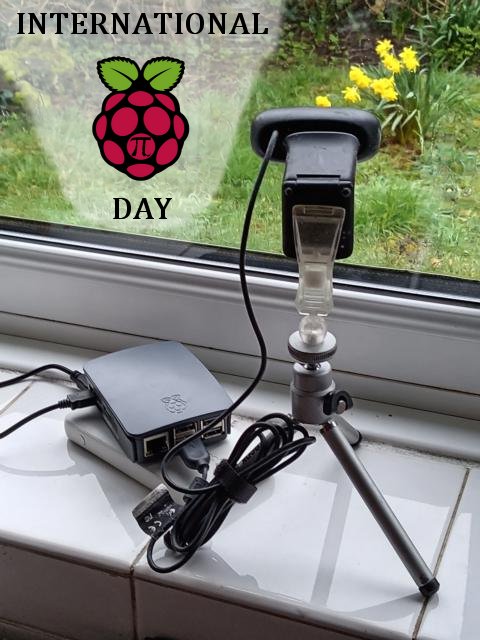
My Pi Setup
Router settings:
When I first setup the webcam on my
Netbook I hit a stumbling block; the webcam worked briefly and then nothing would upload. I found it
was necessary to change a setting on my broadband router.
Specifically, I had to log into my router and enable UNPN
To do this on my Technicolor router I
went to:
Toolbox, Game & Application Sharing > Universal Plug and Play
The webcam page:
So far this gets your webcam image
uploaded, but you need a page to display it on. As mentioned at
the start, assuming you have a free account at Neocities and are
using FTP as per this How2, you may need the page at the same
place as your image hosting, or if that hosting is SSL-enabled
then you can have it at Neocities.
That basic requirement of the page is
that it loads a new frame every 30 seconds to match your Yawcam
upload interval (I opted for 60 seconds on the Pi). Alternatively you can require that your visitors
refresh the page themselves, such as by pressing F5 on their
keyboard.
Note: Refreshing/reloading the
page isn't actually all that reliable since each frame can be
similar to the last and the browser may determine it is too
similar to the last and use its cached copy rather than download a
fresh new one. This varies by browser and I've not looked into
this issue any further.
Rather than have my whole webcam page
refresh, I created a page (webcam.html) with only the 640x480
webcam image on and set that page to refresh every 30 seconds using the following
in the HTML:
<meta http-equiv="refresh" content="30">
I then embedded that page in my
Webcam (index.html) page as an iframe:
<IFRAME WIDTH=640 HEIGHT=480 MARGINWIDTH=0 MARGINHEIGHT=0 HSPACE=0
VSPACE=0 FRAMEBORDER=0 SCROLLING=no BORDERCOLOR="#000000" SRC="webcam.html">
There is likely a way to instruct an
image on a page to reload but I haven't looked into this.
Further settings:
The Gallery:
On the netbook I also have Yawcam save a copy of each
frame to the computer. I was intending to scroll through the images at the end
of each day to pick out the ones of interest to share in my
Gallery, but the novelty of that wore off quick...
Scheduling:
I have dabbled with setting a schedule in the Yawcam
settings (for both FTP and File):
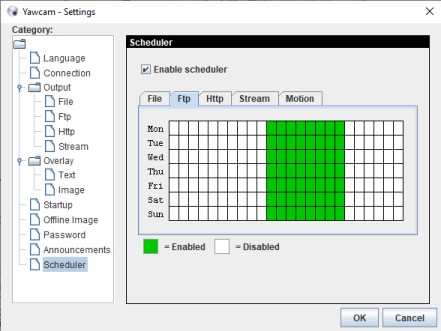
I particularly like how you highlight
the boxes green to enable the camera for that time-slot on each
day.
The introduction slideshow:
Since any given frame from the webcam
typically has a plain image from my garden and may not show things
as a hive of activity, I created a .gif slide show that loads
first (making use of some of those webcam highlights I grab at the
end of each day) and once the viewer clicks it they proceed on to
the 'live' image. I create a new slideshow every once in a while
to give returning visitors something new to see.
If you have a Webcam page on your
website I will be keen to see it;
let me know!
A new issue:
Once my webcam goes to sleep at the
end of the day/scheduled period I manually upload a "Webcam
Offline" image (via FTP) to replace the out.jpg file created by
Yawcam:
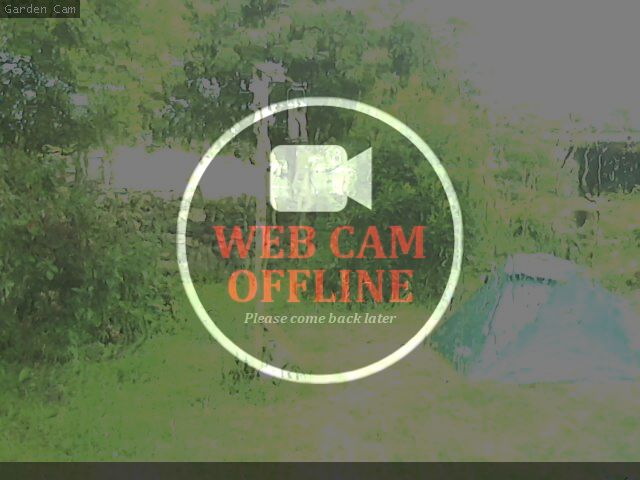
When I came to do this recently I was
presented with an error message:
421 There are too many connections from you internet address.
Sure enough, Yawcam had been reporting
the same in the Console tab. I've not yet figured out how to
resolve this. I can't find any setting at my hosting company to
overcome this. The webcam worked briefly today, but then reached
the limit of the number of connections as implied by the error.
Perhaps running a webcam each day (uploading an image every 30
seconds via ftp) is reaching some limit; perhaps with it being the
end of the month as I encounter this I've reached a monthly quota,
but as I say, it worked briefly today.
I have a counter on the Webcam page to
give me an idea about demand; perhaps the page is receiving too
many requests, but apparently I have unlimited bandwidth on my
hosting service.
That's all for now on this topic; I
hope you've found it interesting or useful.
|