|
There
are three common image formats used
on websites: .jpg, .gif, and .png.
 |
 |
 |
a
.jpg
thumbnail
1.2 KB |
a
.gif
icon
0.3 KB |
a
.png
thumbnail
8.7 KB |
Traditionally, websites relied
mainly on .jpg and .gif, with .png
seeing wider adoption in later
years. Many people on
Neocities aim to create
old-school personal websites, but in
doing so often make three common
mistakes:
Faster
internet speeds mean oversized
images no longer take an hour to
load, but that doesn’t mean they’re
harmless. Large, unoptimized images
waste bandwidth, slow down pages on
weaker connections, and contribute
to unnecessary web bloat.
Avoid
Hotlinking:
Hotlinking - linking directly to
images hosted elsewhere instead of
saving them to your own site -
introduces several problems:
-
If the
source image is removed, your page
breaks
-
If the
hosting service shuts down, your
images disappear
-
Heavy
traffic to the source can slow
your page
-
Regional blocks (such as the UK’s
Online Safety Act) may prevent
images from loading entirely

This is
how images hosted on imgur appear to
people in the UK
You may
not notice these issues yourself,
but some visitors certainly will.
A Better
Workflow:
1)
Download the images you want to use
Be mindful of copyright. Consider
asking permission, crediting
sources, or using freely licensed
images.
2)
Work on your site offline
This allows you to experiment freely
without breaking a live page.
3)
Resize images before uploading
Resize .jpg and .png files to their
intended display dimensions instead
of relying on HTML or CSS to scale
them. Tools like GIMP work well for
this. Export photos as .jpg with a
sensible compression level (around
70–80% is often a good balance).
JPG
compression is powerful but has
limits:
-
Poor
for images with text, fine lines,
or diagrams
-
Can
introduce artifacts in saturated
colors
-
No
transparency support
4)
Use thumbnails properly
Thumbnails should be small,
low-resolution previews that link to
the full image. Using the original
image as a “thumbnail” defeats the
purpose and can cause pages to stall
or never fully load.
5)
Use .gif and .png appropriately
Animated GIFs should generally be
left as-is if the file size is
reasonable. For images requiring
transparency, .gif or .png is
necessary. GIFs work well for low-color
icons and diagrams, while PNGs offer
higher quality and full alpha
transparency.
6)
Name files sensibly
Stick to lowercase letters, avoid
spaces, and use - or _ instead. Use
.jpg rather than .jpeg for
consistency.
7)
Organize your files
Group image-heavy pages into their
own directories. Shared assets like
icons or logos can live in a common
folder.
Read more
about organising your files here.
|
Final
Thoughts:
Optimizing images is often a process
of trial and error. It may feel slow
at first, but over time you’ll
develop a sense for which formats
and settings work best. The result
is a faster, more reliable, and more
considerate website. |
|
|
 |
Found
this
page helpful?
 |
|
|
| Final, final
note... My old-school
approach is to use two old
pieces of software to build my
pages.
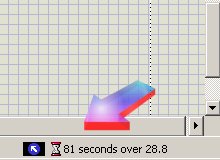
1) Microsoft FrontPage
gives a rough idea of how long a
page is likely to take to load
on a given connection:
2) Jasc Paint Shop Pro
provides a preview of how an
image will appear when saving in
a chosen format:
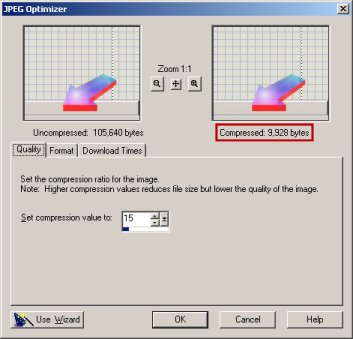
File > Save As > set type >
Options... > Run Optimizer... |
Click
here to read about "How I organise my
website behind the scenes"
|